
Project· Updated July 2026
Usage Bar
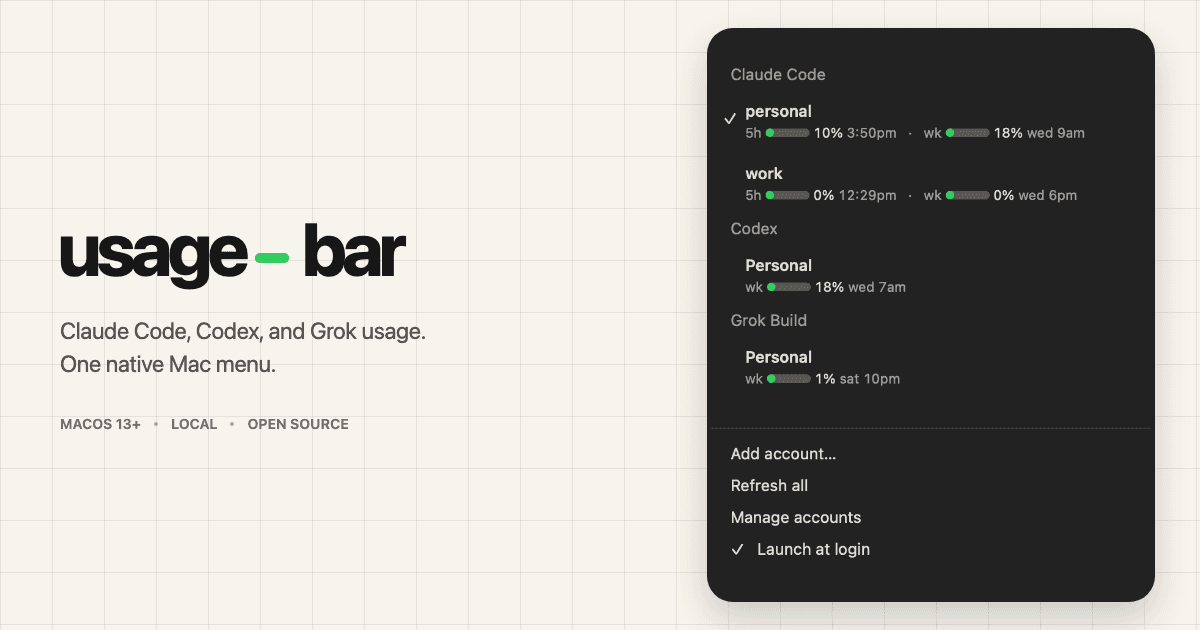
Usage Bar keeps Claude Code, Codex, Grok, and Kimi limits in one native macOS menu. The system bar follows the active Claude account; open the menu for every provider and one-click Claude switching. Codex works with the ChatGPT or Codex desktop app as well as the CLI.
Install
- Download the DMG and open it.
- Drag Usage Bar into Applications (don’t leave it on the disk image).
- Open it from Applications.
- Look in the menu bar at the top-right — there is no Dock icon. First launch shows a Usage label and a short welcome dialog.
- Click Usage, then Add account… to connect Claude Code, Codex, Grok, or Kimi.
Updates
Version 2.0.2 is the final manual update for existing users. After installing it, Usage Bar checks once a day for signed updates and installs future releases in place. Choose Check for Updates… from the menu to check immediately.
Codex, Grok, and Kimi are usage-only: the app reads their limits without changing which account each provider uses. Claude accounts switch only when you click one. There is no automatic account switching.
Everything stays local. Provider credentials remain in the Keychain and CLI-owned files already on the Mac; Usage Bar stores account names, CLI-home paths, and the last successful usage response.